

Download Repartition Bad Drive – Secure Hard Drive Recovery Tool for Windows
Repartition Bad Drive is a powerful Windows utility software developed by Abstradrome, designed to help users recover data from hard drives with physical or logical damage. This specialized tool excels at identifying and isolating bad sectors, allowing you to preserve the functional portions of your drive and repurpose it as a secure external storage device. Unlike standard recovery tools that only scan for lost files, Repartition Bad Drive actively partitions off damaged areas, preventing further corruption and protecting your remaining data.
It's ideal for users dealing with failing hard drives who want to salvage usable space without risking system crashes or data loss. The software is lightweight, easy to install, and requires no technical expertise, making it accessible for both home users and IT professionals. With its robust error detection and safe quarantining mechanism, Repartition Bad Drive ensures that you can continue using your system while planning a full drive replacement.
Whether you're recovering important documents, photos, or system files, this tool offers a reliable, secure, and efficient solution to extend the life of a failing drive.
Key Features of Repartition Bad Drive – A Must-Have for Drive Recovery
Repartition Bad Drive stands out in the crowded field of disk utilities due to its unique approach to hard drive recovery. The core feature is its ability to automatically detect and isolate bad sectors without compromising the integrity of healthy data. This is achieved through a multi-layered scanning algorithm that examines the physical and logical structure of the drive, identifying areas with read/write errors, bad blocks, or corrupted file system entries. Once detected, the software creates a new partition table that excludes these problematic regions, effectively quarantining them from active use.
Another standout feature is the data preservation protocol. Before any repartitioning occurs, the tool performs a deep scan to assess whether critical data exists within the bad sectors. If so, it alerts the user to back up any recoverable information first.
This prevents accidental loss of irreplaceable files. The software also supports multiple file system formats, including NTFS, FAT32, and exFAT, ensuring compatibility with a wide range of storage devices. Users can choose to repurpose the recovered drive as an external storage device, which is particularly useful for archiving or backup purposes.
Additionally, Repartition Bad Drive includes a real-time monitoring dashboard that displays the health status of the drive, scan progress, and estimated recovery time. This transparency helps users make informed decisions about whether to continue using the drive or replace it. The interface is clean and intuitive, with step-by-step wizards guiding even novice users through the entire process. With secure erase options for bad sectors and log file generation for audit trails, this tool is not just a recovery utility but a comprehensive drive management solution for Windows users.
How to Install and Use Repartition Bad Drive – Simple Step-by-Step Guide
Installing Repartition Bad Drive is a straightforward process that takes less than five minutes. Begin by downloading the latest version from the official Abstradrome website. Ensure you’re using a trusted source to avoid malware or bundled software. The installer is a small, standalone executable (under 10MB) that doesn’t require admin rights for basic operations, though some functions may need elevated privileges.
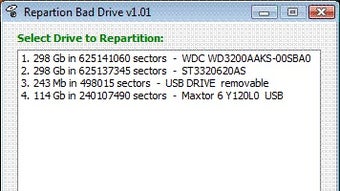
Once downloaded, run the installer and follow the on-screen prompts. The setup wizard will guide you through selecting the installation directory and creating a desktop shortcut. After installation, launch the application. Upon first use, you’ll be prompted to select the target hard drive from a list of connected storage devices. It’s crucial to double-check the drive letter and model to avoid accidentally modifying the wrong disk.
Next, choose the scan mode: Quick Scan for minor issues or Full Scan for comprehensive analysis. A Full Scan may take several hours depending on the drive size and condition. During the scan, the software will identify bad sectors, file system inconsistencies, and logical errors. Once complete, the tool presents a detailed report. Here, you can review which sectors are damaged and whether data within them is recoverable.
If you decide to proceed, click “Repartition” to create a new partition table that excludes the bad areas. The software will then reformat the remaining space with your preferred file system. After repartitioning, the drive is ready to be used as an external storage device. You can connect it via USB or SATA, and it will appear in File Explorer as a new drive. Always back up important data from the repartitioned drive to another location, as it remains fragile and prone to failure.
Compatibility and System Requirements – Works on Modern Windows Systems
Repartition Bad Drive is specifically designed for Windows operating systems, supporting all major versions from Windows 7 SP1 through Windows 11, including both 32-bit and 64-bit architectures. It is fully compatible with Windows 10 and Windows 11, ensuring seamless integration with modern hardware and drivers. The software does not require additional runtime libraries or .NET Framework installations, making it lightweight and easy to deploy across multiple machines.
For optimal performance, the recommended system requirements include a minimum of 1 GB RAM, 50 MB of free disk space, and a processor with at least 1 GHz clock speed. The tool supports a wide range of storage devices, including internal SATA and IDE hard drives, external USB drives, SSDs, and SD cards. It works with both mechanical hard drives (HDDs) and solid-state drives (SSDs), though it’s most effective on HDDs with physical wear.
While Repartition Bad Drive is exclusively available for Windows, users on Mac or Linux systems can still benefit by booting into a Windows environment via dual-boot or virtual machine. However, direct compatibility with macOS or Linux is not currently supported. The software does not require internet access after installation, though it checks for updates automatically during startup. This ensures you always have the latest bug fixes and security patches without manual intervention.
For users managing multiple drives, the tool supports hot-swapping and dynamic drive detection, meaning you can connect and disconnect drives without restarting the application. This is particularly useful in enterprise environments or for IT technicians performing bulk drive recovery tasks.
Pros and Cons – Is Repartition Bad Drive Worth It?
- Pros:
- Efficiently isolates bad sectors to prevent data corruption
- Preserves recoverable data before repartitioning
- Simple, intuitive interface suitable for beginners
- Supports multiple file systems (NTFS, FAT32, exFAT)
- Lightweight with minimal system resource usage
- Real-time health monitoring and progress tracking
- Secure erase and log generation for audit purposes
- Cons:
- Only available for Windows (no Mac or Linux support)
- Cannot recover data from severely damaged sectors
- Full scan may take several hours on large drives
- Not a replacement for professional data recovery services
- Requires manual backup of data before use
Frequently Asked Questions (FAQ) – Get Answers Fast
- Can Repartition Bad Drive recover deleted files?
-
Repartition Bad Drive is not a file recovery tool. It focuses on isolating bad sectors and repartitioning the drive. For deleted or lost files, use dedicated tools like MyRecover or Disk Drill.
- Is it safe to use on a system drive?
-
It is not recommended to use Repartition Bad Drive on your primary system drive. Always back up your OS and data first. Use it only on secondary or external drives.
- How long does a full scan take?
-
Scan time depends on drive size and condition. A 1TB drive with minor issues may take 1–2 hours. A severely damaged drive could take 6+ hours.
- Can I use the repartitioned drive as an external hard drive?
-
Yes! After repartitioning, the drive can be connected via USB or SATA and used as external storage for backups, media, or archives.
- Does Repartition Bad Drive update automatically?
-
Yes, the software checks for updates on startup. Updates include bug fixes, improved detection algorithms, and enhanced compatibility.
Final Verdict – A Reliable Tool for Drive Recovery
Repartition Bad Drive is a dependable utility for users dealing with failing hard drives. While it doesn’t recover deleted files or fix physical damage, its ability to safely isolate bad sectors and repurpose the remaining space is invaluable. It’s especially useful for extending the life of a drive that still holds valuable data. The software is secure, easy to use, and efficient, making it a top choice among Windows-based disk recovery tools.
For those seeking a free, secure, and effective way to manage bad drives, Repartition Bad Drive delivers. However, remember it’s not a substitute for professional data recovery services in extreme cases. Always back up your data before using any recovery tool.
Download Repartition Bad Drive today and take control of your failing hard drive with confidence.







